There’s nothing more frustrating than charging your iPhone in the morning, using it for a few ordinary tasks, and realizing the battery is already running low by the afternoon. You haven’t spent hours playing games or watching videos, yet the battery percentage seems to drop faster than expected.
The problem isn’t always an aging battery.
Sometimes, background activity, unnecessary screen brightness, and frequent email updates can contribute to higher power consumption. A few adjustments may help your iPhone last longer between charges without requiring you to delete your favorite apps or give up useful features.
You Might Also Like:
- Loading posts...
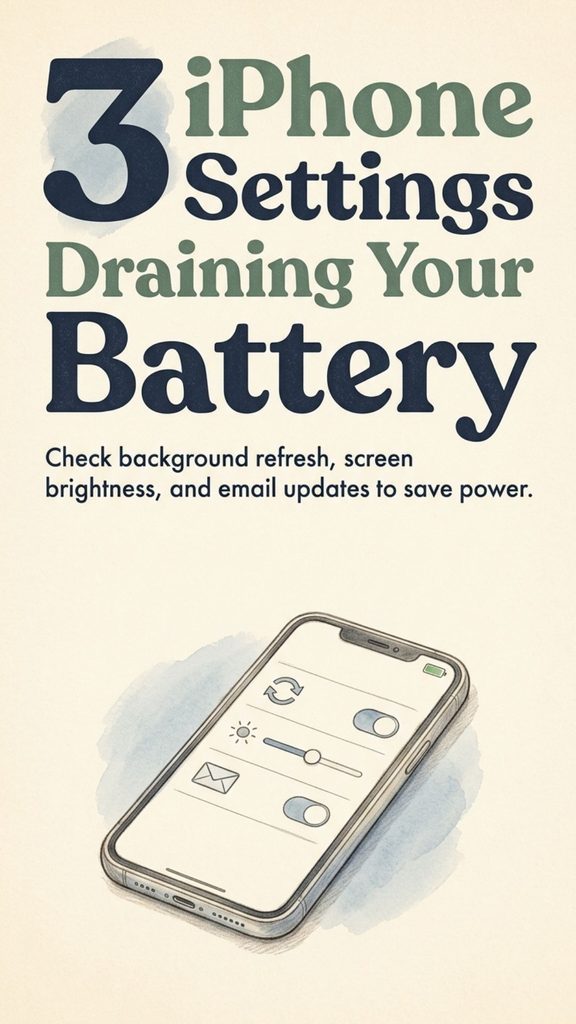
Three settings are especially worth checking: Background App Refresh, screen brightness, and Mail’s email retrieval options.
However, these settings aren’t necessarily the biggest battery drains on every iPhone. Actual battery consumption depends on how you use the device, your cellular signal, the condition of the battery, and which apps are active.
The good news is that you can investigate the problem yourself using tools already built into iOS.
Here’s how to identify unnecessary battery usage, adjust three commonly overlooked settings, and make a few additional changes that can improve everyday battery performance.
Why Your iPhone Battery May Be Draining So Quickly
Before changing settings, it helps to understand why an iPhone consumes power even when you’re not actively using it.
Your phone performs many tasks throughout the day.
It connects to cellular networks, checks for notifications, synchronizes information, updates certain app content, and manages system processes.
When the screen is on, the display also requires power.
Some activities consume considerably more energy than others.
For example, recording high-resolution video, playing graphics-intensive games, navigating with GPS, or using cellular data in areas with poor reception can increase battery usage.
Aging batteries are another factor.
Lithium-ion batteries gradually lose some of their original capacity as they age and undergo charging cycles.
But before assuming your battery needs replacing, it’s worth checking whether a few settings are contributing to the problem.
1. Background App Refresh: Stop Apps From Updating Unnecessarily
Background App Refresh allows supported apps to check for new information while you’re using other apps.
For example, a news app may update its content before you open it, making recent articles available more quickly.
Other apps may perform certain background activities to keep information current.
This feature can be convenient, but it may also use battery power and network resources.
Does Background App Refresh Drain Your Battery?
It can contribute to battery consumption, particularly when apps perform frequent background operations.
However, the amount of energy used varies.
An app that rarely refreshes may have little impact, while another that performs frequent background updates could contribute more noticeably.
It’s also important to understand that an app appearing in the iPhone app switcher does not mean it’s continuously running.
According to Apple, many recently used apps remain suspended and do not actively consume processing resources while in that state.
Background App Refresh allows certain suspended apps to check for new content, but it doesn’t mean every open app is constantly working.
How to Turn Off Background App Refresh
Follow these steps:
- Open Settings on your iPhone.
- Tap General.
- Select Background App Refresh.
- Review the list of apps.
- Turn off background refreshing for apps that don’t need to update when you’re not using them.
You can also tap Background App Refresh again near the top of the screen to change the overall setting.
Depending on your iOS version and available options, you can choose to disable it entirely or allow refreshing over Wi-Fi or both Wi-Fi and cellular data.
Should You Disable It for Every App?
Not necessarily.
A better approach is to review the apps individually.
For example, you may decide that shopping apps, entertainment apps, or rarely used news apps don’t need background refreshing.
Other apps may benefit from remaining updated.
Remember that disabling Background App Refresh doesn’t prevent all background activities. Navigation, audio playback, certain notifications, and system processes operate through different mechanisms.
Some apps may also need to load fresh information when you open them.
Best approach: Disable Background App Refresh selectively, especially for apps showing substantial background usage in Battery settings.
2. Screen Brightness: One of the Easiest Ways to Reduce Battery Use
Your iPhone’s display can account for a meaningful portion of daily power consumption, particularly if you spend several hours using your phone.
Higher brightness requires more display power.
That means keeping the screen unnecessarily bright can contribute to faster battery drain.
Fortunately, reducing brightness is one of the simplest adjustments you can make.
How to Lower iPhone Screen Brightness
There are two easy methods.
Method 1: Use Control Center
- Swipe down from the top-right corner of the screen on an iPhone with Face ID.
- Locate the brightness slider.
- Drag it downward until the screen is comfortably visible.
Method 2: Use Settings
- Open Settings.
- Tap Display & Brightness.
- Move the brightness slider to a comfortable level.
You don’t need to keep the screen extremely dim.
Choose a level that allows you to read comfortably without straining your eyes.
Turn On Auto-Brightness
Auto-Brightness uses the iPhone’s ambient light sensor to adjust screen brightness according to surrounding lighting conditions.
In a darker room, the display can become dimmer.
In bright daylight, it may automatically increase brightness so the screen remains readable.
Apple recommends using Auto-Brightness or manually reducing brightness to help conserve battery life.
To check this setting:
- Open Settings.
- Select Accessibility.
- Tap Display & Text Size.
- Scroll down to Auto-Brightness.
- Make sure it’s enabled.
Auto-Brightness is generally enabled by default.
Turning it off can increase power consumption if it results in your screen remaining brighter than necessary.
Don’t Forget Auto-Lock
Another helpful display setting is Auto-Lock.
If your iPhone remains illuminated long after you stop using it, the screen continues consuming energy unnecessarily.
To adjust it:
- Go to Settings.
- Tap Display & Brightness.
- Select Auto-Lock.
- Choose a suitable shorter interval, such as 30 seconds or one minute.
Your iPhone will then lock the display after the selected period of inactivity, subject to other device features and settings.
This small adjustment can be useful if you often put down your phone without pressing the side button.
What About Always-On Display?
Certain Pro iPhone models support Always-On Display, which keeps limited information visible while the device is locked.
Apple designs this feature to operate with relatively low power consumption, and it automatically turns the display completely dark under certain conditions.
Still, turning it off may provide additional savings for users who don’t need it.
On supported models, go to:
Settings > Display & Brightness > Always On Display
Switch it off if you prefer the screen to remain dark when locked.
Best approach: Keep Auto-Brightness enabled, use a comfortable brightness level, and avoid leaving the display unnecessarily illuminated.
3. Push Email and Fetch Settings: Reduce Unnecessary Mail Activity
Email is another area worth investigating if your iPhone seems to consume power while idle.
Apple Mail can retrieve new messages using different methods depending on the account provider.
Some accounts support Push, which allows new information to be delivered when available.
Others use Fetch, where the device checks for new email according to an available schedule.
These features are convenient because messages can arrive without requiring you to open the Mail app manually.
However, email retrieval and background activity can contribute to battery consumption.
What’s the Difference Between Push and Fetch?
Push: When supported, the email service delivers new-message information to your device without waiting for a scheduled check.
Fetch: The device checks the server for new messages according to the selected retrieval schedule.
Manual: New messages are generally checked when you open or refresh Mail, although behavior can vary by account and service.
It’s important not to assume that Push always uses more battery than Fetch.
Actual power consumption depends on the email provider, message activity, network conditions, and retrieval frequency.
A frequent scheduled polling arrangement may consume more power than an efficient push implementation.
How to Change Mail Fetch Settings
On recent versions of iOS:
- Open Settings.
- Scroll down and tap Apps.
- Select Mail.
- Tap Mail Accounts.
- Choose Fetch New Data.
- Review the available Push and Fetch options.
- Select an appropriate retrieval schedule.
If you don’t need immediate email updates, you may choose a less frequent Fetch schedule or Manual retrieval.
On older iOS versions, the settings may be located under Settings > Mail > Accounts > Fetch New Data.
What Does Automatically Mean?
Apple explains that for accounts using Fetch, the Automatically option generally retrieves new information in the background when the iPhone is charging and connected to Wi-Fi.
If you need mail updates more frequently outside those conditions, a timed schedule may be available.
The available options depend on your email account and provider.
Should You Turn Off Push Email?
Only if it suits your needs and your account supports changing that setting.
If you rely on immediate work messages, security alerts, or important communications, delayed email retrieval may be inconvenient.
On the other hand, someone who checks personal email only a few times daily may not need frequent updates.
Also remember that changing settings in Apple Mail doesn’t necessarily control background behavior in separate apps such as Gmail or Outlook.
Those apps may have their own synchronization and notification settings.
Best approach: Choose an email retrieval frequency that fits how urgently you need messages rather than disabling features automatically.
How to Find Out Which Apps Are Actually Draining Your Battery
Before assuming any particular setting is responsible, check your iPhone’s built-in Battery section.
Apple provides information about app activity and system power consumption.
Check Your Battery Usage
- Open Settings.
- Tap Battery.
- Review the battery usage information.
- On supported recent iOS versions, select View All Battery Usage for additional details.
- Examine which apps or system activities have consumed the most power.
You may see information identifying activity that occurred while an app was on screen or working in the background.
How to Interpret the Information
If a video app accounts for substantial battery usage and you’ve spent several hours watching videos, that may be perfectly normal.
If an app you barely use shows extensive background activity, it may be worth investigating.
You may also see battery use associated with poor cellular coverage.
When cellular reception is weak, your phone may need additional power to maintain connectivity.
Notifications that repeatedly wake the device can contribute to consumption as well.
Look for Battery Suggestions
On compatible recent iOS versions, Apple may display battery suggestions and insights directly in Settings.
These can identify issues such as excessive brightness, disabled Auto-Brightness, or temporary activity associated with software updates.
For example, after a major iOS update, the phone may continue performing certain background tasks.
That temporary activity doesn’t necessarily mean the update permanently damaged your battery performance.
Checking the Battery section helps you make informed changes instead of turning off useful features at random.
Use Low Power Mode When You Need Extra Battery Life
If your phone is running low and you won’t be able to charge it soon, Low Power Mode is one of the most useful built-in features.
Apple designed it to reduce certain activities and settings that consume power.
Depending on the device and iOS version, Low Power Mode can reduce or pause features such as Background App Refresh, automatic downloads, Mail fetch, and some visual effects.
It can also reduce brightness and change other performance-related behavior.
How to Turn On Low Power Mode
On iPhone 15 and later models running recent iOS versions:
- Open Settings.
- Tap Battery.
- Select Power Mode.
- Enable Low Power Mode.
On older compatible models, the Low Power Mode switch may appear directly in Battery settings.
You can also use Control Center if you’ve added the Low Power Mode control.
When enabled, the battery icon turns yellow.
Low Power Mode switches off automatically once the battery reaches the specified charging threshold, generally around 80%.
Is It Safe to Use Low Power Mode Regularly?
Yes. It’s an ordinary iPhone feature designed to conserve energy.
However, certain tasks may take longer, some background activities may pause, and the display may behave differently.
You don’t necessarily need it enabled all the time.
It can be particularly useful during travel, long days away from a charger, or situations when battery life matters more than immediate background updates.
Try Adaptive Power if Your iPhone Supports It
Newer iPhones offer another option called Adaptive Power.
On supported models running iOS 26 or later, this feature can make small automatic performance adjustments when it predicts that additional battery savings may be helpful.
Depending on the situation, it may reduce screen brightness slightly, limit background activity, or activate Low Power Mode when the battery level becomes low.
Apple lists compatible devices including iPhone 15 Pro and Pro Max, iPhone 16 models, and newer supported models.
On supported devices, check:
Settings > Battery > Power Mode > Adaptive Power
Availability and default settings depend on the model and iOS version.
Adaptive Power can be particularly convenient if you prefer automatic adjustments instead of manually managing battery settings throughout the day.
It may need time to learn your usage patterns before its adjustments become active.
What If Your Battery Still Drains Quickly?
If adjusting settings doesn’t produce a noticeable improvement, the battery itself may need attention.
All rechargeable lithium-ion batteries age.
As their capacity declines, they generally provide less usable energy between charges.
That can result in shorter battery life even when your daily habits haven’t changed.
How to Check Battery Health
For iPhone 15 and later models:
- Open Settings.
- Tap Battery.
- Select Battery Health.
On iPhone 14 and earlier models, the menu may be labeled Battery Health & Charging.
Review the available capacity and battery-condition information.
If your iPhone displays a Service recommendation, battery replacement may help restore performance and usable capacity.
Does 80% Battery Health Mean You Must Replace It?
Not automatically.
A lower maximum capacity means the battery can store less energy than when it was new.
Whether replacement makes sense depends on actual battery life, performance, service guidance, and your personal needs.
If your phone still lasts comfortably through the day, replacing the battery may not be urgent.
If you’re constantly searching for a charger, professional battery service may be more effective than repeatedly changing settings.
Battery Life and Battery Lifespan Are Not the Same Thing
These terms are often confused.
Battery life refers to how long your iPhone operates before it needs another charge.
Battery lifespan describes how long the rechargeable battery remains useful before aging reduces its capacity or performance enough to justify replacement.
Lowering brightness or limiting background activity can help extend battery life on a charge.
Protecting battery lifespan involves additional factors, including battery temperature, charging habits, and long-term wear.
Keep Your iPhone Away From Excessive Heat
High temperatures can accelerate lithium-ion battery degradation.
Avoid leaving your iPhone in a hot parked vehicle or exposing it to strong heat unnecessarily.
If the phone becomes unusually hot while charging, allow it to cool and check that your charging accessories and environment are appropriate.
Use Charging Optimization Features
On iPhone 15 and later, Apple provides charging limits that can help reduce battery wear.
You can check them under:
Settings > Battery > Charging
Depending on your device and software, you can choose a maximum charge level that suits your habits.
A lower charge limit may help reduce long-term battery wear, particularly when the phone spends extended periods connected to power.
However, it also reduces the amount of charge available for immediate use.
Choose a limit that balances long-term battery care with the battery life you actually need.
Five More Everyday Habits That Can Help
Beyond the three main settings, a few ordinary habits can help you manage battery consumption more effectively.
1. Use Wi-Fi when it’s available and reliable. A strong Wi-Fi connection can be more efficient than cellular data under certain conditions.
2. Keep iOS updated. Software updates may include bug fixes, efficiency improvements, and changes to battery management. Temporary post-update background activity can sometimes increase consumption for a short period.
3. Review unnecessary notifications. Frequent alerts can wake your device and encourage additional screen use.
4. Avoid poor cellular reception when practical. Low-signal environments can increase power usage. If you don’t need connectivity temporarily, Airplane Mode may reduce radio activity.
5. Don’t constantly force-close every app. Apple explains that suspended apps generally aren’t actively using system resources. Habitually closing all apps is not a proven way to improve overall battery performance.
These changes are most useful when they address an actual pattern in your daily usage.
Common iPhone Battery Myths Worth Forgetting
Several widely repeated battery-saving claims are exaggerated or misleading.
Myth: Every app in the app switcher is draining power. Many apps are suspended and aren’t continuously consuming resources.
Myth: Turning off Background App Refresh will double your battery life. Results vary, and there is no dependable percentage of savings that applies to everyone.
Myth: Push email is always worse than Fetch. Consumption depends on the email service, update frequency, and network conditions.
Myth: Keeping your screen extremely dim is always best. Lower brightness saves energy, but you should still be able to use your phone comfortably and safely.
Myth: An older battery can be restored to new capacity by changing settings. Software adjustments may reduce consumption, but they cannot reverse normal chemical aging.
Myth: You should never charge an iPhone overnight. Modern iPhones manage charging automatically, although heat and long-term charging patterns can affect battery wear.
Understanding these differences prevents unnecessary settings changes and unrealistic expectations.
A Quick Five-Minute iPhone Battery Checklist
If you want to begin with the most practical adjustments, use this checklist.
- Open Settings > Battery and identify which apps are using the most energy.
- Check Settings > General > Background App Refresh and disable unnecessary app refreshing.
- Lower screen brightness to a comfortable level.
- Enable Auto-Brightness under Settings > Accessibility > Display & Text Size.
- Choose a suitable Auto-Lock interval.
- Review email retrieval settings if Mail shows meaningful battery use.
- Use Low Power Mode when you need to conserve energy.
- Check Battery Health if poor battery life persists.
- Consider Adaptive Power if your iPhone and iOS version support it.
You don’t need to change everything at once.
Try a few adjustments, then compare battery behavior over several ordinary days.
That makes it easier to determine which settings are genuinely helpful for your usage.
Final Thoughts: Small Settings Changes Can Make Your iPhone Battery Last Longer
A quickly draining iPhone battery doesn’t always mean the phone is defective or ready for replacement.
Sometimes the solution is as simple as reducing unnecessary background activity, lowering excessive screen brightness, or adjusting how often email accounts retrieve new messages.
Background App Refresh is worth reviewing, especially for apps you rarely use.
Screen brightness is another useful place to start because the display can consume substantial power during everyday use.
And Mail settings deserve attention when frequent email retrieval is contributing to background activity.
But no single setting guarantees a dramatic improvement for every iPhone.
The most effective approach is to check your actual battery usage, identify what consumes power, and make changes that match your needs.
If you’re still experiencing poor battery life, review the battery’s health and consider whether the aging battery itself is responsible.
A few thoughtful adjustments can help your iPhone work more efficiently, reduce unnecessary charging interruptions, and make the battery last longer when you need it most.